
When an Industrial PC displays the following message during startup:
Reboot and Select proper Boot device
or Insert Boot Media in selected Boot device and press a key
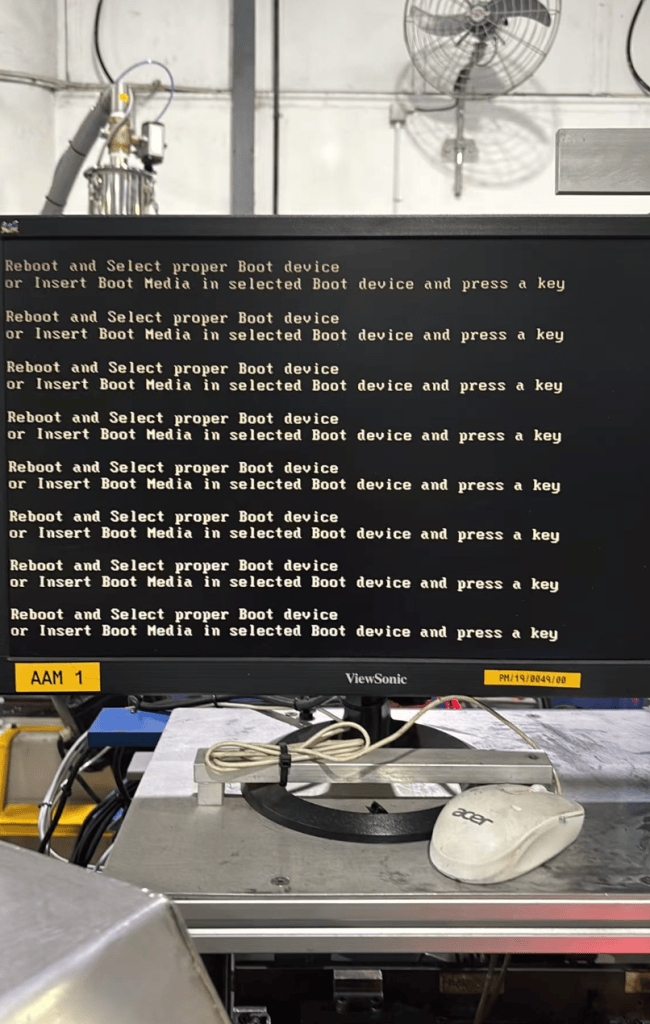
Many users immediately assume that Windows has crashed.
In reality, this message appears before Windows even starts loading. It indicates that the system BIOS cannot find a bootable storage device, so the Industrial PC has no operating system to start.
The good news is that this error is often straightforward to diagnose.
What Does This Error Mean?
When an Industrial PC powers on, the startup process follows these steps:
- Power on
- BIOS/UEFI initializes hardware
- BIOS detects the SSD or HDD
- BIOS locates the operating system
- Windows or Linux starts
If the process stops at Step 3 or Step 4, the BIOS displays the “Reboot and Select proper Boot device” message.
This means the system cannot find a valid boot device.
Common Causes
1. The SSD Is Not Detected
This is the most common cause.
Possible reasons include:
- Loose SSD connection
- Failed SSD
- Damaged SATA cable
- M.2 SSD not properly seated
- Faulty motherboard storage interface
If the BIOS cannot detect the SSD, the operating system cannot load.
2. Incorrect Boot Order
Sometimes the SSD is healthy, but the BIOS attempts to boot from another device such as:
- USB drive
- Network (PXE)
- Empty SATA port
Simply setting the system SSD as the first boot device usually resolves the issue.
3. Windows Boot Files Are Damaged
The SSD is detected, but the boot loader has become corrupted.
Possible causes include:
- Unexpected power loss
- Interrupted Windows update
- Disk corruption
In this case, the SSD is visible in BIOS, but the system still cannot boot.
4. BIOS Configuration Has Changed
After a BIOS reset or CMOS battery failure, settings may revert to default.
Examples include:
- UEFI changed to Legacy
- AHCI changed to RAID
- Boot entries removed
These changes may prevent the operating system from starting.
5. SSD Failure
Industrial PCs often operate 24/7 in demanding environments.
Although industrial SSDs are designed for high reliability, storage devices still have a finite lifespan.
Typical symptoms include:
- BIOS no longer detects the SSD.
- The system worked normally yesterday but fails today.
- Boot failures become increasingly frequent before complete failure.
If the Error Appears After Weeks or Months of Normal Operation
Many users report that the Industrial PC operated normally for several weeks before suddenly showing this message.
In this situation, the most likely causes are:
| Possible Cause | Likelihood |
|---|---|
| SSD failure | ⭐⭐⭐⭐⭐ |
| SSD connection loosened by vibration | ⭐⭐⭐⭐☆ |
| Sudden power interruption | ⭐⭐⭐⭐☆ |
| Motherboard storage interface issue | ⭐⭐⭐☆☆ |
| BIOS settings reset | ⭐⭐☆☆☆ |
Unlike a brand-new system, a previously working Industrial PC rarely develops this error because of an incorrect BIOS boot order alone.
How to Troubleshoot
Follow these steps:
Step 1: Enter BIOS
Check whether the SSD is listed under:
- SATA Information
- NVMe Configuration
- Storage Devices
If the SSD is missing, proceed to Step 2.
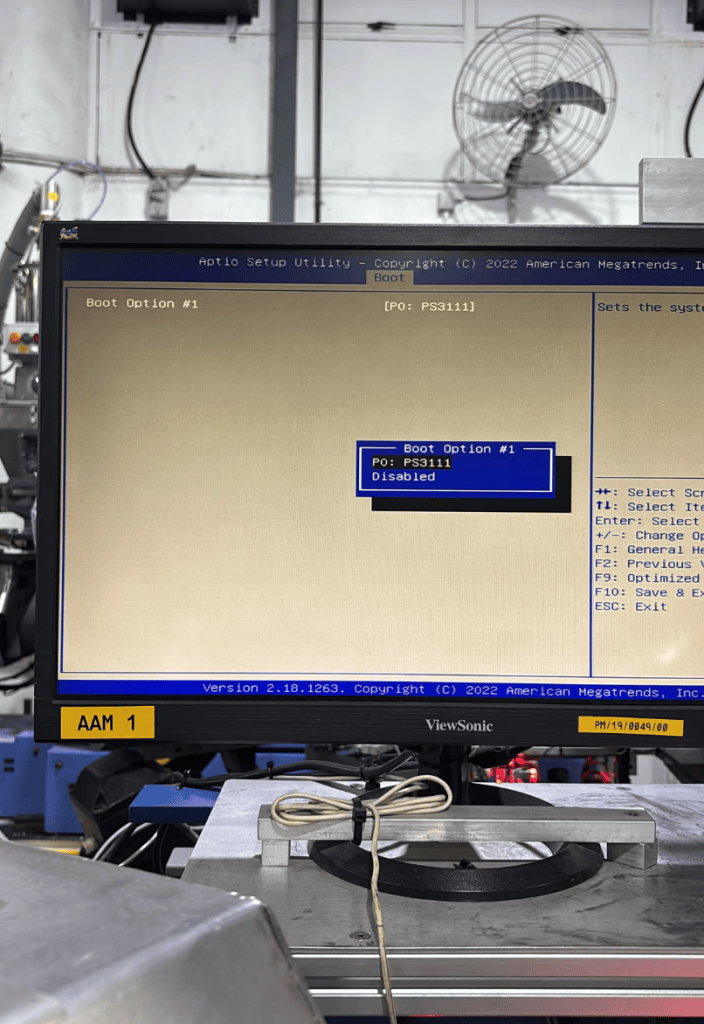
Step 2: Reseat the SSD
Power off the Industrial PC.
For M.2 SSDs:
- Remove the SSD.
- Reinstall it securely.
- Tighten the mounting screw.
For SATA SSDs:
- Reconnect both the SATA data cable and power cable.
Step 3: Test the SSD
Install the SSD in another computer.
- If another computer also cannot detect it, the SSD has likely failed.
- If another computer detects it normally, investigate the Industrial PC motherboard or storage interface.
Step 4: Verify Boot Settings
If the SSD is detected, confirm:
- Windows Boot Manager exists.
- The SSD is the first boot device.
- Boot mode matches the operating system (UEFI or Legacy).
Step 5: Repair the Boot Loader
If the SSD is detected but Windows still does not start, use a Windows recovery USB or PE environment to repair the EFI partition and boot files.
How to Prevent This Problem
To reduce the risk of boot failures:
- Use industrial-grade SSDs with high endurance.
- Ensure the SSD is securely mounted in vibration-prone environments.
- Avoid sudden power loss by using a stable power supply or UPS.
- Periodically monitor SSD health using SMART diagnostics.
- Replace aging SSDs before they reach the end of their service life.
Conclusion
The “Reboot and Select proper Boot device” error does not always mean that Windows is damaged.
In most Industrial PCs, the root cause is one of three issues:
- The BIOS cannot detect the SSD.
- The SSD has failed.
- The boot configuration has become invalid.
A systematic check of the SSD, BIOS settings, and boot configuration will quickly identify the problem and minimize equipment downtime.
For industrial automation systems, preventive maintenance of storage devices is just as important as maintaining CPUs, memory, and power supplies.
Why Reliable Storage Matters
At CESIPC, storage reliability is a key part of every Industrial PC design.
We use Kingston industrial-grade SSDs that have been validated through more than 10 years of deployment across factory automation, machine control, transportation, energy, and other demanding industrial applications.
Combined with rigorous burn-in testing and system validation before shipment, CESIPC Industrial PCs deliver:
- Stable and reliable boot performance
- High endurance for 24/7 operation
- Excellent resistance to vibration and harsh industrial environments
- Reduced risk of unexpected storage failures
A reliable Industrial PC starts with reliable storage. Choosing proven industrial components helps minimize downtime and ensures long-term system stability.
Talk to a CESIPC Engineer
Our application engineers are ready to help you select the right configuration, discuss ODM requirements, or provide a tailored quotation for your project.
Typical response within 24 hours · Multilingual support · CE / FCC / BIS compliant


We use your details only to answer this enquiry — no newsletters, no sharing. Drawings or a photo of the existing panel can be sent to sales@cesipc.com.